Change Image DPI
The professional tool to convert photo resolution for printing. Change DPI, Crop, Resize, and fix metadata instantly.
Supports JPG, PNG, TIFF & HEIC
The Professional Guide to Changing Image DPI
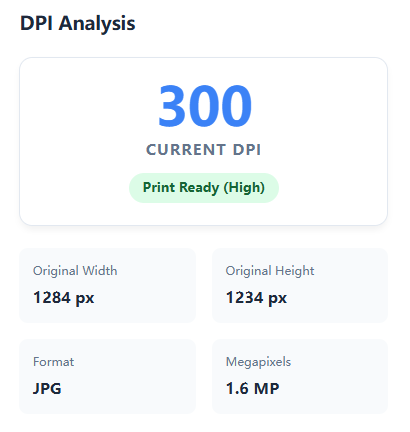 One of the most common frustrations in digital imaging is the disconnect between screen display and physical output. You might have a high-resolution photo that looks stunning on a 4K monitor, but when sent to a print shop, it is rejected for "Low Resolution" or prints out blurry and pixelated. The culprit is almost always DPI (Dots Per Inch).
Most digital images—whether from stock websites, smartphones, or digital cameras—are saved by default at 72 DPI or 96 DPI. This density is optimized for screen viewing (fast loading) but is woefully inadequate for lithography or high-quality inkjet printing. To bridge this gap, you must change image DPI to 300. Our online DPI Converter does this professionally by modifying the file's internal metadata and pixel structure.
How to Change Image DPI: Resampling vs. Physical Scaling
Many users are confused about what actually happens when you convert DPI. It is not just changing a number; it involves the mathematical relationship between Pixel Dimensions and Physical Size. Our tool offers two professional modes to handle this :
-
Mode A: Smart Resampling (The "Fix It" Mode):
Scenario: You have a small web image (e.g., 800x600 px) but need to print it as a standard 4x6 inch photo at 300 DPI.
The Process: Simply changing the metadata isn't enough because you lack the necessary pixels. Our tool uses Bicubic Interpolation algorithms to mathematically generate new pixels, increasing the image resolution (e.g., upscaling to 1200x1800 px) while smoothing out jagged edges. This ensures the physical print size remains correct without "blockiness." -
Mode B: Physical Scale (The "No-Loss" Mode):
Scenario: You have a massive 4000x3000 px photo from a DSLR, but the metadata says "72 DPI".
The Process: You don't need more pixels; you just need to tell the printer to pack them tighter. This mode changes the metadata instruction only. The pixel count remains 4000x3000, but the physical print dimension instructs the printer to condense the dots, resulting in a smaller but razor-sharp print.
Why Our Tool is Different: Real Binary Patching
Many free online tools merely rename the file or change the EXIF tag, which professional software like Adobe Photoshop or industrial printers often ignore.
FPE DPI Converter performs a deep-level Binary Patch on the JFIF (JPEG File Interchange Format) header segments (`APP0` marker). We directly inject the density unit (0x01 for dots per inch) and the X/Y density values (e.g., 0x012C for 300) into the file's hexadecimal structure. This ensures 100% compatibility with print servers, government submission portals, and design software.
DPI Standards: When to Use Which?
72 DPI: Screen & Web Standard
Use this for websites, email signatures, and digital presentations. It ensures the smallest file size and fastest loading times. Note: 72 DPI images will look pixelated if printed larger than a postage stamp.
200 - 240 DPI: Large Format Printing
Ideal for posters, canvas prints, or billboards that are viewed from a distance (arm's length or further). The slight loss in density is indistinguishable to the human eye at these distances.
300 DPI: The Print Industry Standard
The universal requirement for handheld print materials: brochures, business cards, A4 documents, magazines, and family photos. At 300 DPI, the ink dots merge seamlessly to form continuous tones. If you are unsure, always convert to 300 DPI.
600 DPI: Archival & Line Art
Necessary for scanning text documents for OCR (Optical Character Recognition), reproducing fine line art, blueprints, or archival museum photography where microscopic detail must be preserved.