Resize Image in Centimeter: The Ultimate Tool for Print-Ready Photos
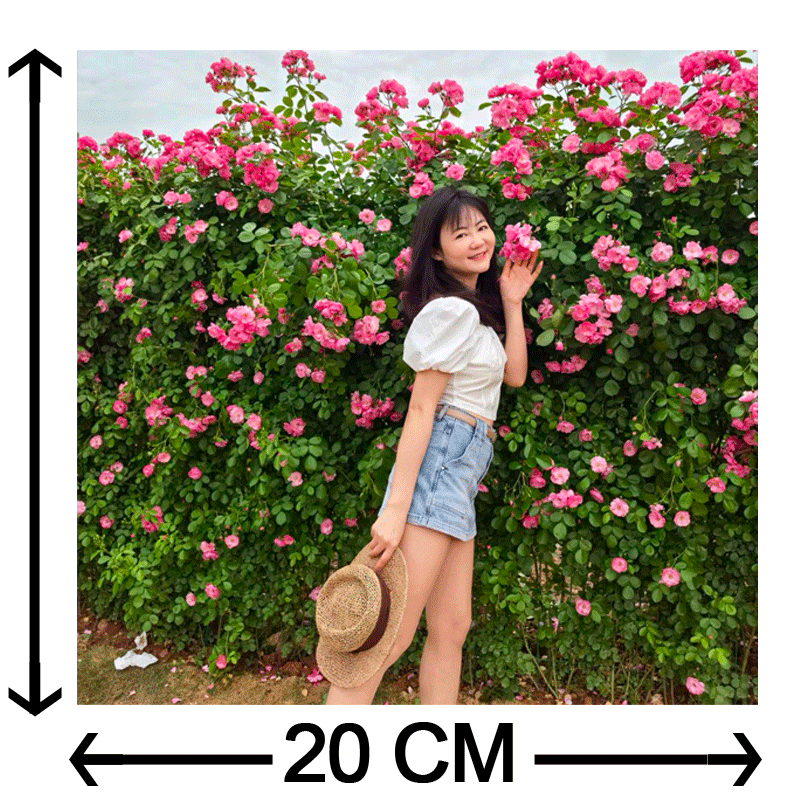 Have you ever printed a digital photo only to find it looks blurry, pixelated, or the size of a postage stamp? The disconnect between digital pixels and physical centimeters is the #1 problem in printing. Our Online Image CM Resizer bridges this gap, allowing you to convert pixels to cm with precise DPI control, ensuring your photos look perfect on paper, canvas, or official documents.
Table of Contents
Why Resize in Centimeters? Understanding Pixels vs. Physical Size
Digital screens display images in pixels (px), but printers work in physical measurements like centimeters (cm) or inches. The magic number connecting them is DPI (Dots Per Inch).
Most screens use 72 DPI, which is fine for the web but terrible for printing. To get a sharp, professional print, you generally need 300 DPI.
- The Problem: If you take a 1000px wide image and print it at 72 DPI, it will be huge (35 cm) but blurry. If you print it at 300 DPI, it shrinks to 8.5 cm but looks crisp.
- The Solution: Our tool calculates the exact pixel count needed for your desired physical size (e.g., 4 x 6 cm) at your desired quality (e.g., 300 DPI). It automatically performs the "resampling" math:
Pixels = (CM / 2.54) * DPI.
Why Choose This Batch CM Resizer?
We designed this tool for photographers, designers, and office workers who need "print-ready" files instantly.
Precise Physical Dimensioning
Input exact values like 3.5 cm width for a visa photo or 21.0 cm for an A4 header. No more guessing pixel math.
Custom DPI Control
Defaulting to the industry-standard 300 DPI for high-quality prints, but adjustable to 72 DPI for web or 600 DPI for fine art reproduction.
Bulk Processing (Batch Mode)
Have 50 product photos that all need to be 10x10 cm? Resize them all in one click and download a ZIP file. Support for JPG, PNG, WebP, and HEIC (iPhone photos).
Privacy First (Client-Side)
Unlike other tools, your photos never leave your browser. All processing happens locally on your device using advanced Canvas API tech. It's faster and 100% secure.
Compress to Target Size
Need a photo for an online application that demands "under 100KB"? Our smart algorithm adjusts quality to meet strict file size limits without ruining dimensions.
How to Resize Images in CM Online
Follow these simple steps to prepare your images for printing:
- Upload Images: Drag and drop your files (JPG, PNG, or HEIC) into the box. You can upload multiple files at once.
- Set Dimensions (CM): In the "Physical Dimensions" panel, enter your desired Width and Height in centimeters. (Tip: Keep the "Lock Icon" active to maintain the original aspect ratio and prevent stretching.)
- Set DPI (Resolution): For printing, ensure the DPI is set to 300. For screen use, 72 is sufficient.
- Export Settings: Choose your output format (JPG is best for photos, PNG for graphics). If you have a file size limit (e.g., for a government portal), check "Compress to Specific Size" and enter the KB limit.
- Apply & Download: Click "APPLY SETTINGS TO ALL" to process the batch. Then, click "Batch ZIP All" or download images individually.
Standard Photo Sizes in Centimeters (Cheat Sheet)
Use this table to quickly find the dimensions you need for common print formats at 300 DPI.
| Format Name | Size in CM (WxH) | Usage |
|---|---|---|
| Passport / Visa (Standard) | 3.5 x 4.5 cm | Identity Documents (EU/UK/Many others) |
| 2 x 2 inch (US Visa) | 5.1 x 5.1 cm | US Passport / Visa |
| Standard 4R | 10.2 x 15.2 cm | Standard Photo Album Prints |
| A4 Paper | 21.0 x 29.7 cm | Standard Document / Flyer |
| A5 Paper | 14.8 x 21.0 cm | Half-sheet flyers / Notebooks |
| Instagram Portrait | 10.8 x 13.5 cm (@72dpi) | Social Media (4:5 Ratio) |
Frequently Asked Questions (FAQ)
Q: Will resizing a small image to a large CM size make it blurry?
It depends on the original resolution. If you take a tiny 500px image and try to resize it to A4 (21x29cm) at 300 DPI, our tool has to "invent" pixels (upscaling). While browsers use bicubic smoothing to reduce jagged edges, scaling up significantly will result in a loss of sharpness. It is always better to start with a high-resolution source.
Q: What is the difference between "Resize" and "Resample"?
Resizing usually refers to changing the metadata (telling the printer "print this at 10cm") without changing pixels. Resampling (what this tool does) actually changes the number of pixels in the file to match the physical size and DPI perfectly. This ensures compatibility across all devices and printers.
Q: Why does my 300 DPI image look huge on my monitor?
Monitors typically display images at roughly 72-96 PPI (Pixels Per Inch). A 300 DPI image contains about 4x more data density than a screen needs. So, when viewed at "100%" zoom on a screen, it will look enormous. This is normal! When printed, the dots are packed tighter, resulting in the correct physical size.
Q: Can I use this for Passport Photos?
Yes. Set the width to 3.5 cm and height to 4.5 cm (or your country's specific requirement), set DPI to 300, and export. You can then print this file on 4R paper and cut it out.